Release notes
Workflows that run on routes
Action required before your next driver upsert: include phoneNumber in every PUT /v1/fleet/drivers/upsert request. Send an international number with a leading country code.
Highlight
Workflows that run on routes. A workflow could react to an order, a delivery, or an attempt, but not to the route they ride on, the thing a dispatcher actually watches. A route that leaves late, stalls halfway, or gets canceled was something a person noticed on the Execute page, or didn't. Now a route is a workflow context of its own, with triggers for each moment in its life and fields that describe where it stands.
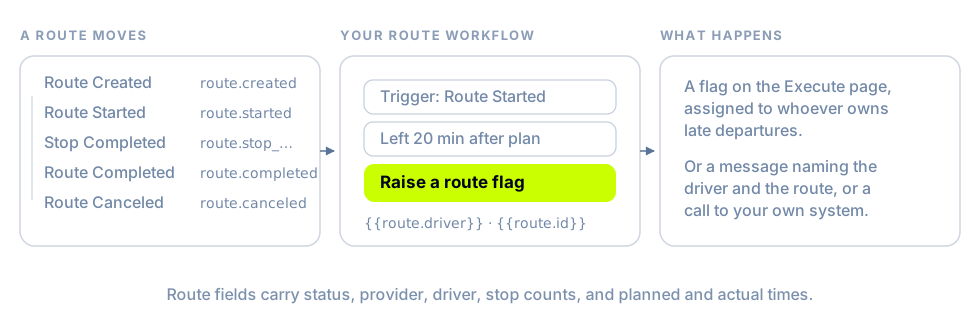
- Five triggers, one per lifecycle moment. A Routes category in the builder offers Route Created, Route Started, Route Stop Completed, Route Completed, and Route Canceled,
route.created,route.started,route.stop_completed,route.completed, androute.canceledin the API. - Filter on the route's own state. Route Status, Provider, Driver, Stop Sequence (the next stop still needing a visit), Stops Completed, Total Stops, Planned Departure, Actual Departure, and Planned Completion are all conditions, with the time fields read in your organization's time zone. "A route whose actual departure is twenty minutes past its planned one" is a filter, not a report someone runs later.
- Act on the route, not just about it. The route-flag actions are the natural pair: raise a flag so the late departure is work on the Execute page with an owner, rather than a message someone has to catch. Notifications and Send HTTP request work here too, and messages can carry
{{route.*}}variables, the driver, the status, the stop counts.
See React to a route.
New & improved
Orchestration
- Fill in instructions as an order is created. The Update order instructions action on the Order being created trigger writes pickup or drop-off instructions before dispatch: add text before what's there (the default), after it, or replace it, and optionally only when the field is missing, blank,
N/A, or an address-only line all count as missing. Two nodes cover both stops, and the workflow's filters pick the store or delivery model. Text over 280 characters fails the step visibly rather than being cut. (For organizations with order-creation workflows turned on.) See Fill in instructions as an order is created.
Portal
- One map on the Orders page for moving work between routes. Add to route and Move to route open an editor with the map beside it: search a destination by route, driver, or vehicle, choose from Nearby (within 10 km) or all routes, and preview the result before you apply it. Route cards carry Dispatch, Resequence, Calculate timing, Split, and copy actions; stops resequence by drag or keyboard; and Resequence and Calculate timing show stop positions and arrival times before and after. Select an unassigned order to see its pickup-to-dropoff path.
- See your customers on the map. A Customers layer on the Orders, Routes, and Execute maps, off until you switch it on, plots each customer at their latest delivery address, clustered apart from route stops and refreshed as you pan, up to 500 in view. Filter it by name or contact details, and select a pin for the customer's details.
- Highlight orders on the optimization review by any of your configured review fields. Highlight sits beside Filters: matching stops get a halo on the map and matching rows a tint in the list without hiding anything else, and the unassigned list in map view puts matches first.
- Hover a route's pickup counter to see picked and total per dropoff stop, in route order, with a warning on any stop still short, so a driver held up by a missed scan can be traced to the stop. Click to pin it open.
- Manifest a single shipping delivery from its job page. A Manifest action sits with the other job actions, so you no longer go back to a list to find the delivery you were looking at. (For organizations with shipping turned on.)
- Reverse order in the Execute resequence dialog flips the pending dropoffs in place; depots, pickups, breaks, and completed stops keep their slots, and Apply new sequence recomputes the stop ETAs.
- The delivery panel's copy menu lists Pickup barcodes and Dropoff barcodes when a delivery has them.
Nash Agent
- A scheduled agent can run monthly. The schedule trigger's Monthly cadence takes a day of the month and a time; a day a month doesn't have is skipped rather than moved to the month's last day. See Set up a schedule.
- Insight cards on the Daily Brief show the evidence summary and, when an agent suggested one, the next check, so you can triage from the list without opening each insight.
- Each file an agent produces carries a file-type badge on its thumbnail, so a long name that hides its extension still says what it is.
- The Nash MCP server accepts twice the request rate it did, 40 requests per second, with bursts up to 100, so a scheduled agent's burst of tool calls is no longer turned away.
Platform API
- Barcodes and other proofs are counted separately on a Fleet API update. A delivery holds up to 50 photos and signatures and, apart from those, up to 200 barcode records across pickup, dropoff, and return, so an order with many barcodes no longer crowds out its photos. See Lifecycle & validation.
courier_location.updatedwebhooks can be sent as driver positions arrive, at most one every 20 seconds per delivery, instead of on the tracker's cycle of every minute or two. Expect several times the volume. (For organizations with immediate location webhooks turned on.) See Courier location events.
Integrations
- Added Dash as a delivery option in Saudi Arabia. Orders, status and courier updates, and cancellations go through Dash's API, and pricing comes from your Nash contract.
Fixes
Dispatch
- Auto-dispatch after an optimization runs when the solver returns a result it has returned before; the orders no longer sit undispatched.
- A strategy's earliest-dispatch lead time holds multi-order routes as well as single-order ones, so a strategy set to keep re-optimizing until a set number of minutes before pickup does so instead of dispatching the first result and stopping. The strategy's schedule has to run more often than that lead window is long, or a held route waits for a run that never comes.
- Deactivating a selected optimization strategy no longer traps the sidebar on one tab, and a tab you chose by hand survives searches and refreshes.
- The Activities page's Items column shows a dash for a route re-optimization instead of counting the route as one order.
- The optimization review footer counts every numbered stop, pickups included, so it matches the stop badges and the map.
- A route restriction with a start and end date saves, and the dates load back into the form when you reopen it.
- The dispatch strategy picker in the Optimize flow no longer offers Select All.
Portal
- Request logs open promptly for requests with large bodies. The body loads for the request you select, with a message when it can't be fetched.
- Notification timelines show only messages sent to people; an agent's internal start and stop signals no longer appear as empty email entries.
- New zone and route-restriction editors open at your organization's saved map center, and a center stored as text no longer breaks the map.
- Long exception forms on Execute scroll, so Notes and the actions at the bottom are reachable at normal zoom, and stop counts and end ETAs in the Execute table stay on one line.
- The "stops before you" count on a job's page follows the route's dropoff order, so a driver's last stop no longer reads as the first. (For organizations with provider batch info turned on.)
Nash Agent
- Files you upload to a chat stay attached to their message, so the chips are still there after a reload.
- A confirmation card appears once, on the message that raised it, after a reload or replay, and a resolved action no longer reopens.
- An email or Slack message an agent sends with a large file carries a download link to the file, instead of going out without it.
Fleet
- Drivers created through
PUT /v1/fleet/drivers/upsertappear in the Portal's internal-driver list and can sign in to the Driver App by SMS. An optionalemailalso provisions email sign-in, without sending a welcome message. See Fleet overview. - A parking bay a driver sends stays on the stop; a status refresh no longer clears it while the driver is scanning.
- A route whose first stop is a depot start can be started from the driver app: the start marker completes and the pickup becomes the active stop.
- After Complete Loading on a pickup whose picks had already synced, the route refreshes, so a delivered item shows as delivered and its stop can be completed without restarting the app.
- Pickup details list every order's ID, using the external ID for an order with no location or reference ID.
- With driver cancellation turned off for your organization, the route flow hides Cancel Delivery as the delivery list already did.
Integrations
- A Microlise route dispatches when a task has no time window; the stop's planned arrival and departure stand in for it rather than failing the whole route.
- Cancellations sent to AlShrouq complete, and an order AlShrouq reports as already canceled is closed on the Nash side instead of being retried.
- Shopify tag sync and fulfillment-quantity sync run for an order that was first created through the API and then matched by the Shopify app.
- A delivery already in transit no longer drops back to Manifested when the carrier's stop status lags its carton scans; tracking pages and status webhooks keep the in-transit state.
- DeliverEasy quotes succeed for dropoff addresses without a business name.